# Integrating Zapier

- AgentRoof Provides [WebHook](https://zapier.com/features/webhooks "https://zapier.com/features/webhooks") to connect your Zaps
- Using AgentRoof WebHook you can send data of leads from any application connected to [Zapier](https://zapier.com/ "https://zapier.com/") to AgentRoof CRM
- The WebHook Accept the following information
    
    
    - Name
    - Email
    - Phone
    - Campaign Name
    - Adset Name

Find below the instructions to connect your Zaps to AgentRoof CRM

1. Create new Zap trigger Refer: <span class="_80om1qgj _1e0c1nu9" data-testid="smart-link-draggable-inline"><span data-annotation-inline-node="true" data-annotation-mark="true" data-card-url="https://help.zapier.com/hc/en-us/articles/8496288188429-Set-up-your-Zap-trigger#h_01J5TN82DP6CXGMFR93ME3H8F0" data-inline-card="true" data-renderer-start-pos="376"><span class="loader-wrapper"><span class="hover-card-trigger-wrapper" data-testid="hover-card-trigger-wrapper" role="none">[<span class="_19itglyw _vchhusvi _r06hglyw _o5721jtm _1nmz9jpi _16d9qvcn _ca0qv77o _u5f31b66 _n3tdv77o _19bv1b66" data-testid="inline-card-icon-and-title"><span class="_19itglyw _vchhusvi _r06hglyw">Set up your Zap trigger</span></span>](https://help.zapier.com/hc/en-us/articles/8496288188429-Set-up-your-Zap-trigger#h_01J5TN82DP6CXGMFR93ME3H8F0)</span></span></span></span>
    
    
    1. Or you can use your existing Zap trigger
2. Create Action
    
    
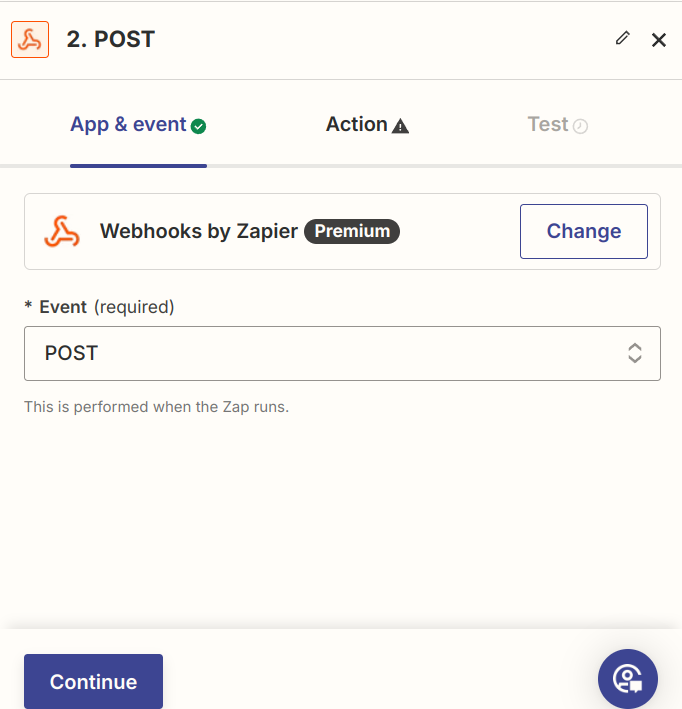
    1. Choose Action type as Webhook By Zapier
    2. On the App &amp; Event section
        
        
        1. Choose Event as POST
            
            <div class="rich-media-item mediaSingleView-content-wrap image-center css-1xjf95a" data-layout="center" data-media-vc-wrapper="true" data-node-type="mediaSingle" data-renderer-start-pos="542" data-vc="media-single" data-width="368" data-width-type="pixel"><div class="css-55mk8j"><div class="css-vhfmu2" contenteditable="false" data-media-badges="true" data-testid="media-badges">  
            </div><div data-alt="Screenshot from 2024-08-28 00-04-10.png" data-collection="contentId-282427393" data-context-id="282427393" data-file-mime-type="image/png" data-file-name="Screenshot from 2024-08-28 00-04-10.png" data-file-size="46402" data-height="709" data-id="9ac28662-4364-4e3b-9427-8a6203b3366b" data-node-type="media" data-renderer-start-pos="543" data-type="file" data-width="682"><div class="_2rko18qm _vchhusvi _kqswh2mm _ect4ttxp _p12f1osq _c71l1osq _1bsb1qmm _4t3ine4n _1hlmd0i9 _1rquusvi _eg541i5c _mts3kb7n _1ntskb7n _yfmhtlke _5sb1v00u new-file-experience-wrapper" data-media-vc-wrapper="true" data-testid="media-card-view" id="bkmrk-"><div class="_1reo15vq _18m915vq _2rko18qm _1e0c1txw _kqswh2mm _p12f1osq _1bsb1osq _4t3i1osq _c71l1osq media-file-card-view" data-cursor="pointer" data-test-media-name="Screenshot from 2024-08-28 00-04-10.png" data-test-progress="1" data-test-source="remote" data-test-status="complete" data-testid="media-file-card-view"><div class="_kqswstnw _1bsb1osq _4t3i1osq _1e0c1txw _2lx21bp4 _1bah1h6o _4cvr1h6o" data-testid="ImageRendererWrapper">[![Screenshot from 2024-08-28 00-04-10.png](https://wiki.agentroof.com/uploads/images/gallery/2026-04/scaled-1680-/screenshot-from-2024-08-28-00-04-10.png)](https://wiki.agentroof.com/uploads/images/gallery/2026-04/screenshot-from-2024-08-28-00-04-10.png)</div></div></div></div></div></div>
        2. Click Continue
    3. In the action section enter the following details
        
        
        1. URL
            
            
            1. https://crm.agentroof.com/api/facebook-lead-via-zapier
        2. Payload type
            
            
            1. Form
        3. Data
            
            
            1. In this section add the following data using the '+' button
            2. name
                
                
                1. Choose name filed from your trigger
                2. This is a required field
            3. email
                
                
                1. Choose email field from your trigger
                2. Either email or phone is required
            4. phone
                
                
                1. Choose phone field from your trigger
                2. Either email or phone is required
            5. campaign
                
                
                1. You can input any value or choose from your trigger
                2. This is used to identify the source of the lead in CRM
                3. This field is required
            6. adname
                
                
                1. This field is optional
                2. It Can be used when you are running facebook add
        4. Wrap Request In Array
            
            
            1. Choose ‘No’
        5. Unflatten
            
            
            1. Choose ‘Yes’
        6. Headers
            
            
            1. Set header name as ‘APPKEY’
            2. Value as
                
                
                1. <span class="fabric-background-color-mark" data-background-custom-color="#fedec8" data-renderer-mark="true"><span class="background-color-padding-left background-color-padding-right">Your CRM KEY</span></span>
                    
                    
                    1. <span class="fabric-background-color-mark" data-background-custom-color="#fedec8" data-renderer-mark="true"><span class="background-color-padding-left background-color-padding-right">Get the key from our support team</span></span>
        7. Click Continue
    4. Test your step and verify you have received a lead in CRM
    5. Publish the Zap