Integration
- Integrating Zapier
- Integrating Third-party Landing Pages Via API
- Integrate Facebook Lead Ads
- Integrate Twilio SMS
- Integrate Twilio Call
Integrating Zapier
-
AgentRoof Provides WebHook to connect your Zaps
-
Using AgentRoof WebHook you can send data of leads from any application connected to Zapier to AgentRoof CRM
-
The WebHook Accept the following information
-
Name
-
Email
-
Phone
-
Campaign Name
-
Adset Name
-
Find below the instructions to connect your Zaps to AgentRoof CRM
-
Create new Zap trigger Refer: Set up your Zap trigger
-
Or you can use your existing Zap trigger
-
-
Create Action
-
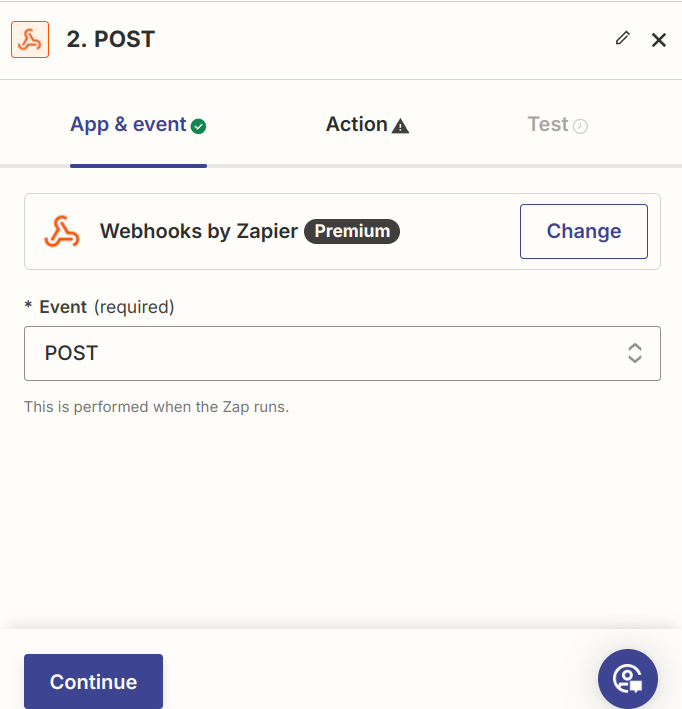
Choose Action type as Webhook By Zapier
-
On the App & Event section
-
Choose Event as POST

-
Click Continue
-
-
In the action section enter the following details
-
URL
-
https://crm.agentroof.com/api/facebook-lead-via-zapier
-
-
Payload type
-
Form
-
-
Data
-
In this section add the following data using the '+' button
-
name
-
Choose name filed from your trigger
-
This is a required field
-
-
email
-
Choose email field from your trigger
-
Either email or phone is required
-
-
phone
-
Choose phone field from your trigger
-
Either email or phone is required
-
-
campaign
-
You can input any value or choose from your trigger
-
This is used to identify the source of the lead in CRM
-
This field is required
-
-
adname
-
This field is optional
-
It Can be used when you are running facebook add
-
-
-
Wrap Request In Array
-
Choose ‘No’
-
-
Unflatten
-
Choose ‘Yes’
-
-
Headers
-
Set header name as ‘APPKEY’
-
Value as
-
Your CRM KEY
-
Get the key from our support team
-
-
-
-
Click Continue
-
-
Test your step and verify you have received a lead in CRM
-
Publish the Zap
-
Integrating Third-party Landing Pages Via API
Overview
AgentRoof CRM provides an API to integrate lead submissions from external websites or landing pages not developed by AgentRoof. This API allows users to send lead details directly to AgentRoof CRM.
Base URL
https://crm.v2.1.agentroof.com/api/add-leadRequest Method
-
POST: The API accepts POST requests to submit lead information.
Request Headers
The request headers must include the APPKEY, which serves as your CRM authentication key. Contact the AgentRoof support team to obtain your unique APPKEY (CRM Key).
Example Header:
APPKEY: your-crm-appkey-hereRequest Body
The request body should be sent as form-data and include the following fields:
|
Field Name |
Type |
Required |
Description |
|---|---|---|---|
|
|
string |
Yes |
The full name of the lead. |
|
|
string |
Yes |
The lead's email address (must be a valid email). |
|
|
string |
Yes |
The lead's phone number (must be a 10-digit number). |
|
|
string |
Yes |
The URL of the website or landing page from which the form is submitted. |
|
|
string |
No |
The lead source (default: |
|
|
string |
No |
The lead's stage (default: |
|
|
string |
No |
Tags associated with the lead (default: |
Example Request Body:
name: John Doe
email: john.doe@example.com
phone: 1234567890
url: <https://example-landingpage.com>
source: Facebook
stage: New Lead
tag: Seller lead
Response
The API will return a JSON response indicating the success or failure of the lead submission.
Successful Response:
{
    "status": "success",
    "message": "Lead added successfully",
    "data": []
}
Error Response:
If the request fails due to missing required fields or validation errors, the API will return a JSON response with details:
{
    "status": "error",
    "message": "The email must be a valid email address.,The phone field is required."
}
Whitelisting IP Address
To ensure the API requests are not blocked by AgentRoof's firewall, you are required to share the IP address from which the requests will be made. Contact AgentRoof support to have your IP address whitelisted.
Important Notes
-
APPKEY: Always ensure the correct APPKEY is used in the request header.
-
IP Address Whitelisting: Failure to whitelist your IP address may result in the API request being blocked by AgentRoof's firewall.
-
Form-Data Submission: Ensure that all required fields are provided in the correct format to avoid validation errors.
For any additional assistance, please contact the AgentRoof support team.
Integrate Facebook Lead Ads
What is Facebook Lead Ads Integration?
Facebook Lead Ads Integration allows you to connect your Facebook Lead Center directly to AgentRoof CRM.
Once connected, leads submitted through your Facebook Lead Ads are automatically captured and added to AgentRoof CRM, helping you respond to new inquiries more quickly and efficiently.
Access the Integration Page
The Integration page will be displayed.
Connect Facebook Lead Ads
-
Locate the Facebook Lead Ads integration.
-
Click Connect Now.
You will be redirected to the Facebook Lead Ads configuration page.
Configure the Integration
-
Click Connect Facebook.
Import Existing Facebook Leads
If you would like to import leads that already exist in your Facebook Lead Center:
-
Select Yes.
If you only want to receive new leads going forward:
-
Select No.
-
Click Continue.
You will be redirected to the Facebook login page.
Log in to Facebook
-
Enter your Facebook credentials.
-
Complete the login process.
After successfully logging in, a list of Facebook Pages associated with your account will be displayed.
Select Facebook Pages
-
Select the Facebook Page or Pages you want to connect to AgentRoof CRM.
-
Click Next.
The permissions page will be displayed.
Grant Required Permissions
To allow AgentRoof CRM to automatically receive leads submitted through Facebook Lead Ads:
-
Review the requested permissions.
-
Select Yes for all permissions.
-
Click Done.
Note
The requested permissions are required for AgentRoof CRM to retrieve leads from your Facebook Lead Center automatically.
Complete the Integration
-
Click OK on the confirmation screen.
Your Facebook Lead Center is now successfully connected to AgentRoof CRM.
Activate Connected Pages
After the connection is completed:
-
Return to the Facebook Lead Ads configuration page.
-
Locate the connected Facebook Pages.
-
Click Activate next to each page you want to receive leads from.
Once activated, leads submitted through those Facebook Lead Ads will automatically be added to AgentRoof CRM.
Manage Connected Pages
At any time, you can:
-
Add additional Facebook Pages
-
Remove connected Facebook Pages
-
Activate or deactivate lead synchronization
-
Disconnect the Facebook integration entirely
All management options are available from the Facebook Lead Ads configuration page.
Conclusion
You have successfully learned how to connect Facebook Lead Ads to AgentRoof CRM, import existing Facebook leads, activate connected pages, and manage your Facebook Lead Ads integration.
Integrate Twilio SMS
Seamlessly connect your Twilio account to AgentRoof CRM to send and receive SMS directly. This integration enhances your lead engagement by letting you manage all SMS conversations without leaving the CRM, ensuring faster responses, better follow-ups, and more meaningful conversations with your leads.
Follow these steps to connect Twilio to your AgentRoof CRM account.
1. Log in to AgentRoof CRM
- Open the CRM login page using one of the following methods:
- Click the CRM Login button at the bottom of your website, or
- Open your browser and visit https://crm.agentroof.com
- Enter your email address in the email field.
- Enter your password in the password field.
- Click the Login button.
2. Go to the Integration Section
3. Connect Your Twilio Account
- On the Twilio card, click Connect Now.
- A Configure Twilio Account panel will open, showing a short walkthrough video and setup steps.
- Click Connect Twilio to begin the setup.
4. Configure Twilio Account
- Log in to your Twilio Dashboard.
- Copy your Account SID, Auth Token, and Phone Number.
- Paste these details into the corresponding fields in AgentRoof CRM.
Once connected, your Twilio number will be linked to your CRM account for sending and receiving SMS.
Key Features
- Two-Way Messaging: Instantly send and receive SMS within the CRM, keeping all lead conversations in one central place.
- Automatic Lead Linking: All SMS interactions are automatically tied to the corresponding lead profile, giving you a complete communication history.
- Actionable Insights: Use the campaign name as a source to trigger automated workflows, such as Action Plans, Listing Alerts, and other tasks, ensuring timely and effective engagement with your leads.
- Custom Sender IDs: Use your Twilio numbers to personalize your outreach and build trust with leads.
- SMS Automation: Trigger automated SMS campaigns, reminders, and alerts based on lead activity, saving you time while staying highly responsive.
- Conversation Tracking: View full conversation threads in the CRM, making it easy for your team to collaborate and maintain consistent communication.
- Scalable Messaging: Whether you're handling a few leads or thousands, Twilio integration ensures reliable, secure, and scalable SMS delivery.
Why Use Twilio Integration?
This integration helps you stay connected with leads in real time, ensuring you never miss an opportunity. By managing SMS conversations directly in the CRM, you streamline communication, improve response times, and build stronger relationships with prospects. Integrating Twilio with your CRM is the perfect way to modernize your lead communication strategy, making every interaction timely, personal, and impactful.